

Husk is an open-source app that runs Android games on an iPhone, and since version 3.0, some PlayStation 4 games too. It can’t go on the App Store, so you install it with a sideloader and turn on JIT each time you play. Our Husk 3.0 story covers how it works – now this guide is how you get it running.
We haven’t fully tested Husk yet. These steps follow Husk’s own setup guide and in-app help, plus SideStore’s install guide, and we’ll add our results once we’ve run it for a while on an iPhone 17 Pro Max.
What you need
- iOS 15.5 or later for Android games, and iOS 17.4 or later for PS4 games. Husk’s README still says 16.0; the 3.0 release lowered it.
- A computer for the first install. SideStore’s requirements page lists Windows 8 or later (with iTunes), macOS High Sierra or later, an up-to-date Linux or a recent, un-enrolled Chromebook.
- A pairing file on iOS 26 and earlier, unless you use TrollStore or a Dopamine jailbreak. It’s made on a Mac, Windows or Linux computer, so do it in the same sitting. It can stop working after an iOS update or a reset, and then you’ll need the computer again.
- An Apple Account. On a free one, the apps it signs expire after seven days unless you refresh them.
- Wi-Fi, not mobile data.
- LocalDevVPN, a free on-device VPN that SideStore and Husk’s JIT setup both use. Its App Store listing says all traffic stays on the device.
- About 140MB for Husk 3.0, plus about 2GB if you add the optional full Android system.
Step 1: Install SideStore
SideStore installs apps on your iPhone and signs them with your own Apple Account. Install LocalDevVPN on the iPhone and iloader on the computer first, then:
- Connect the iPhone by USB and trust the computer if asked.
- Open iloader and sign in with your Apple Account (it’s case-sensitive). Select your iPhone, then “Install SideStore (Stable)”.
- On the iPhone, go to Settings › General › VPN & Device Management and trust your Apple Account under Developer App. On iOS 18 and later, that’s “Allow & Restart” and your passcode.
- On iOS 16 and later, turn on Developer Mode at the bottom of Settings › Privacy & Security. The iPhone restarts.
- Open LocalDevVPN and tap Connect. SideStore needs it on whenever you install, update or refresh apps.
- Open SideStore, sign in with the same account, and in My Apps tap the “7 DAYS” counter next to SideStore. If it asks about a signing certificate, tap Yes or Refresh Now.
Step 2: Install Husk from its official source
In SideStore or AltStore, go to Sources › + and paste Husk’s own source: https://raw.githubusercontent.com/Leviidev/Husk/main/altsource.json. The sideloader installs Husk and offers each update as it comes out. You can also download Husk.ipa from Husk’s GitHub Releases and install it with SideStore, AltStore or TrollStore.
Skip IPA mirrors and re-uploads. We wouldn’t trust anyone else’s copy of an app that asks for debugger rights.
On a free account, refresh Husk in My Apps before its counter runs out. If it lapses, Husk opens and closes instantly; refresh or reinstall it, and your games and saves stay.
Step 3: Turn on JIT
Every game needs JIT. Android games are compiled while they run, which needs memory iOS unlocks only while a debugger is attached. Turning on JIT attaches one for a moment. It lasts until Husk closes, and with on-device pairing or a pairing file, turning it back on is one tap.
Husk 3.0’s first launch offers a Turn On JIT page you can skip. The same walkthrough lives in Settings › JIT & Sideload › Set up JIT.

On iOS 27
iOS 27 can pair with Husk on the iPhone itself, with no computer.
- In the walkthrough, choose “Pair on this iPhone”.
- Turn on Wi-Fi, tap “Start pairing” and allow Local Network access.
- Open Settings › Privacy & Security › Developer Mode, scroll down and tap “Pair with Husk”.
- Enter the code Husk shows. It also appears in a banner and a notification.
- Back in Husk, tap “Connect LocalDevVPN” and, once it’s on, “Check setup”. The first check downloads Apple’s Developer Disk Image, which can take a minute.
- Tap “Enable JIT”.
On iOS 26
On iOS 26, the built-in StikJIT works with a pairing file from a computer. Make one with StikDebug’s pairing-file guide and save it to Files or AirDrop it to your iPhone. In the walkthrough, choose “Use a pairing file”, tap “Choose pairing file”, then tap “Connect LocalDevVPN”, “Check setup” and “Enable JIT”.
The StikDebug app works too: choose “Use StikDebug”, import your pairing file into StikDebug and connect LocalDevVPN.
Before iOS 26
Use the StikDebug app with a pairing file and LocalDevVPN. Two more ways work only before iOS 26: TrollStore, if you installed Husk with it (turn on URL Scheme in TrollStore’s Settings), and a Dopamine jailbreak with Allow JIT in Apps turned on.
Step 4: Add Android games
Tap + in Husk’s Library and pick an .apk, .apks, .xapk or .apkm, or share one to Husk from Files or Safari. Husk’s Store also downloads Android apps from Google Play, with a guest account or your own.
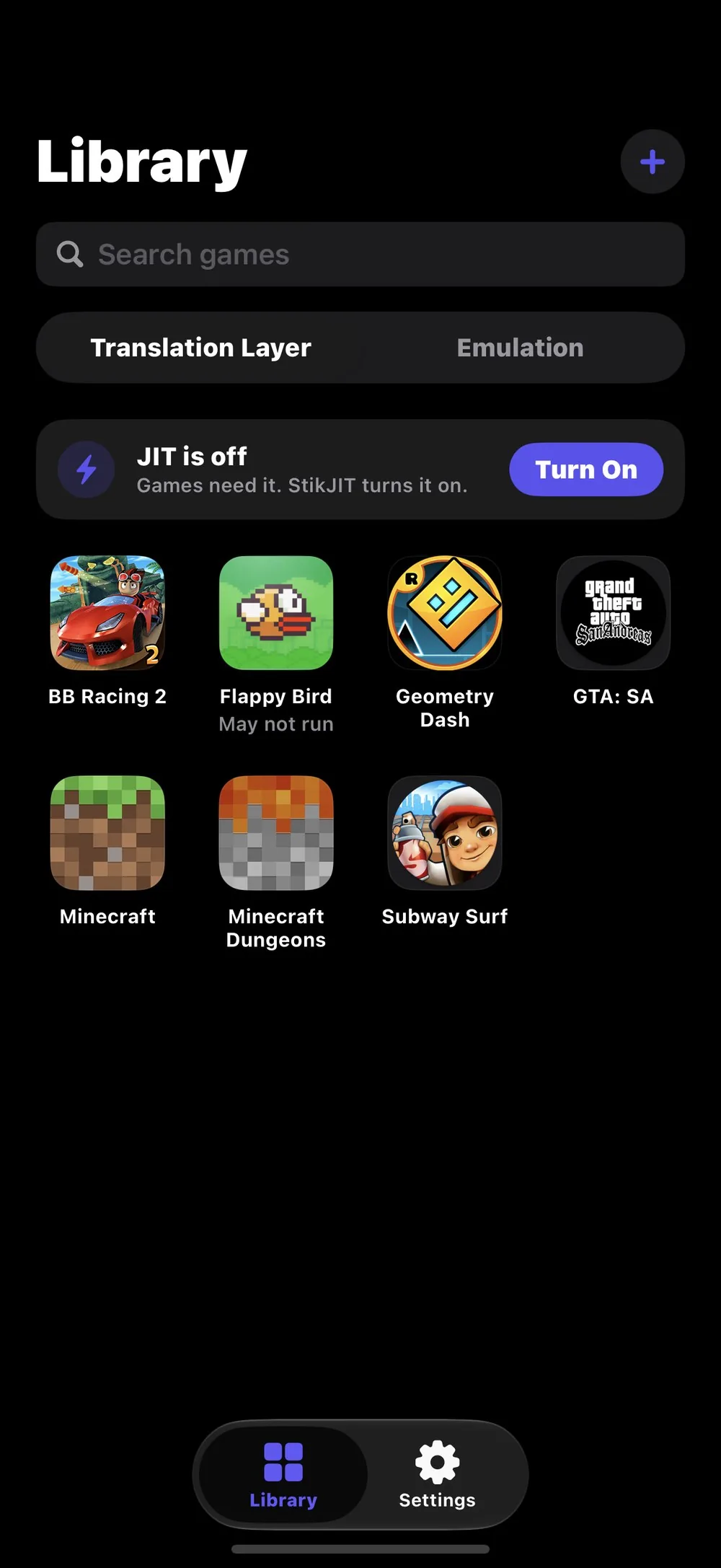
Games need 64-bit (arm64-v8a) code. Play Games sign-in, cloud saves and purchases don’t work, and games with anti-cheat or DRM won’t run. Java-only apps need the full Android system, which is much slower.
By Husk’s count, 488 Android games work after 3.0. Bluetooth controllers work, and a game’s page can back up its saves to a .zip.
Step 5: Add PS4 games
PS4 games need iOS 17.4 or later. Tap + and pick what Husk calls a “fake package” (.pkg), a folder of them, or an extracted game folder. Retail packages are locked to a PS4 and won’t install. Use only games you own, and check the law where you live.
The 3.0 release notes list Bloodborne, Minecraft: PlayStation 4 Edition and Sonic Mania as tested.
If something goes wrong
- The app opens and closes instantly: its certificate has probably expired. Refresh or reinstall it; your games and saves stay.
- “Pair with Husk” doesn’t appear: tap Start pairing in Husk first and allow Local Network access, or turn it on in Settings › Privacy & Security › Local Network › Husk.
- Enable JIT fails: check that LocalDevVPN is connected, Wi-Fi and Developer Mode are on, and the Developer Disk Image has finished downloading. Then turn LocalDevVPN off and on, and pair again.
- JIT broke after an iOS update: make a new pairing file (or pair again on iOS 27), and try Reset Developer Disk Image in the walkthrough.
- A game won’t open: its Library page says why. A big game’s first launch can show a black screen for up to a minute.
FAQ
Do I need to jailbreak my iPhone?
No. StikDebug or Husk’s built-in StikJIT turns on JIT without one. A Dopamine jailbreak is just one more option before iOS 26.
Is Husk safe to install?
The code is public, since Husk is open source under the GPL-2.0-or-later license. It asks for debugger rights, which JIT needs, and Local Network access, which it uses to pair with your iPhone. Husk says its JIT connection sends nothing off your iPhone. We’d install it only from the official source or GitHub Releases.
Is Husk on the App Store?
No, and it can’t be. Husk’s README says its GPL license and its need for an attached debugger both rule it out.
Can Husk run Bloodborne?
It runs, just not well. The 3.0 release notes’ known issues say Bloodborne “runs, but very poorly.” You’ll need iOS 17.4 or later and your own copy.
Before you blame your iPhone
Releases come fast: version 1.0.1 arrived on October 9th, 2.0 on October 12th and 3.0 on October 18th. So when a game misbehaves, check Husk’s compatibility list and the latest release notes first. Your iPhone is probably fine; Husk just had a busy week and a half.







David Gonzales
Want more guides like this on HYPRcurrent? Leave a message and let us know!
https://www.hyprcurrent.com/contact/